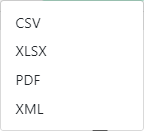
To add a new survey, click  .
.
The Surveys page displays a table containing surveys that have been created on the system with pertinent information for each survey. This screen will include three filter options – search by name, survey status, and survey visibility. For each survey listed in the table, an Actions drop-down will be shown including options to email, view results, view respondents, or remove the document.
The table will include the following columns:
Survey Name / Description
Survey Status
Access Level
Start Date
End Date
Completed (x of y, percentage)
Created On Date & Time
For corporate/retailer level users to which the survey is assigned, the survey will only be visible once the survey is published. When the survey has been completed, completion date/time and the option to view their submission will be shown. Otherwise, an option to complete the survey will be present.
Upon clicking on a Survey’s name, the administrator will be taken to the Survey Detail page. On this screen the user can edit details of the survey including the survey’s name, description, start/end dates, status, visibility, and options to make the survey anonymous or repeatable. Edit permissions will be determined by the user’s role & access in the application.
Users with edit access may also select the corporate(s), retailer(s), user group(s), and/or user(s) to which the survey is assigned. Assigned surveys will appear in the assignee’s to-do list in the header of the application. The available assignment options will be determined by the user’s role & access in the application.
 . The following pop-up window displays: