gemRetailer navigation is performed from the Header and Menu bars. These navigation functions are available from all pages within gemRetailer.
The left side of gemRetailer header identifies the Pennsylvania Lottery and gemRetailer title.
Element
|
Description
|
|
|
|

|
The Select a Corp list allows the Lottery user to select a corporate account with which to work. This list is not displayed for users of type Corporate and Location.
|
|
|
|

|
The Search for a Location list allows the Lottery and Corporate account user to select a location with which to work. This list is not displayed for Location-type users.
For Corporate account users, the locations are limited only to those retailer locations within the account that are defined by the user role and user ID.
For Lottery users, the locations are determined by whether the user has selected a corporate account. If the user has selected a corporate account, the locations are limited to those locations belonging to the selected corporate account. If a corporate account is not selected, the Lottery user can select from all locations in gemRetailer.
|
|

|
The Clear Selection button resets the Select a Corp and Search for a Location fields, and returns the user to the Dashboard page.
|
|

|
The View Alert icon allows you to view important system related information. A badge will be shown on the top right of the icon when the user has unread alerts. Initial alerts will include retailer packs of concern alerts: Games Past End, In Transit Too Long, Unconfirmed Receipt, Overdue Return – Warehouse, Game Not yet Activated and Soon to Force Settle.
|
|

|
Links to the user’s profile, change password, and logout.
-
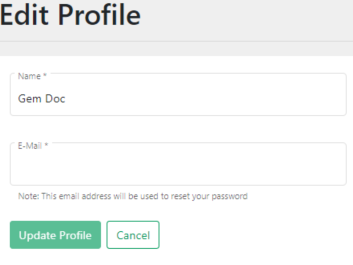
To update your name and email, click Edit Profile. The Edit Profile screen displays. Make all necessary edits and click Update Profile.
-
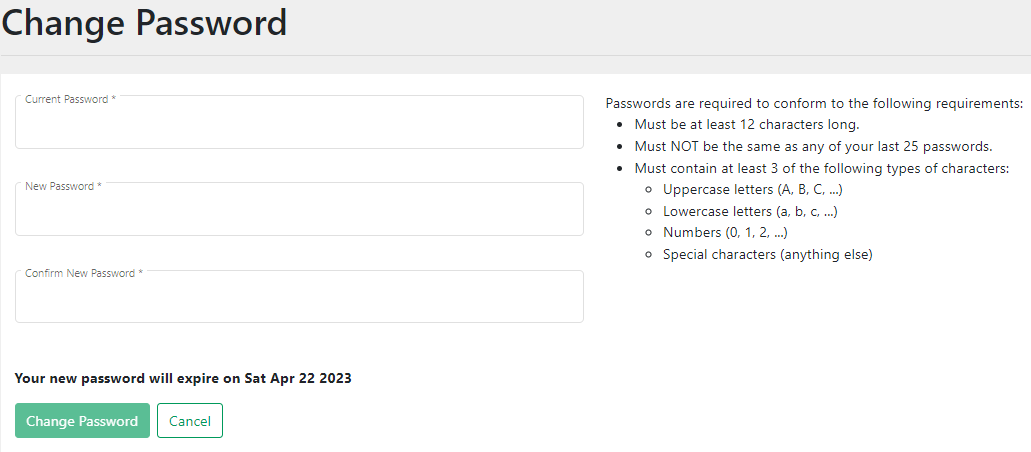
To change your password, click Change Password. The Change Password screen displays. Complete the fields on the screen and click Change Password.
-
To log out of gemRetailer, click Logout.
|
There are many web pages within gemRetailer. The pages are organized by functional areas that correspond to the menus on the Menu bar. The Menu bar is displayed differently according to the user type.
Element
|
Description
|
|
Dashboard
|
The Dashboard menu displays the gemRetailer Dashboard from anywhere within the gemRetailer application.
|
|
|
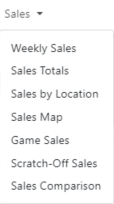
The Sales menu pages will not show information until a corporate account or location is selected.
-
If you are a retailer location user, the Sales menu is available because the location is automatically set to your location. When you navigate to the sales pages, the pages display information for your location.
-
If you are a Corporate account user, the user's corporate account is automatically selected and the locations are filtered to display the locations your user name authorizes you to access. If you navigate to the Sales pages without selecting a location, the Sales information is displayed for all your authorized locations. If you select a retailer location, Sales pages display totals for the selected location and provide an option for displaying roll-up totals for all assigned locations.
-
If you are a Pennsylvania Lottery user, the Sales menu is unavailable until you select a corporate account or location. If you select a corporate account and do not select a location, the Sales pages are displayed for the corporate account as a whole. If you select a retailer location that is within the corporate account, Sales pages display totals for the selected location and provide an option for displaying roll-up totals for all account locations.
|
|
|
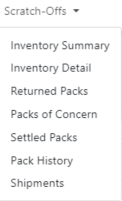
The Scratch-Offs menu pages will not show information until a location is selected.
-
If you log in to gemRetailer as a retailer Location user, the Scratch-Offs menu is available because the location is automatically set to your location.
-
If you log in to gemRetailer as a Corporate account user, the corporate account is automatically selected, but the - menu is not available until you select a location.
-
If you log in to gemRetailer as a Pennsylvania Lottery user, the Scratch-Offs menu is not available until you select an independent retailer location, or a corporate account and one of its locations or location.
When you navigate to any of the Scratch-Off pages, the page displays information for the location.
|
|
|
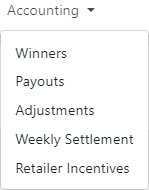
The Accounting menu pages will not show information until a location is selected.
-
If you log in to gemRetailer as a retailer Location user, the Accounting menu is available because the location is automatically set to your location.
-
If you log in to gemRetailer as a Corporate account user, the corporate account is automatically selected, but the Accounting menu is not available until you select a location.
-
If you log in to gemRetailer as a Pennsylvania Lottery user, the Accounting menu is not available until you select an independent retailer location, or a corporate account and one of its locations.
When you navigate to any of the Account pages, the page displays information for the location.
|
|
|
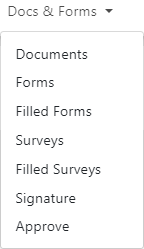
The Docs & Forms menu is always available.
|
|
|
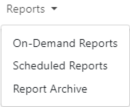
The Reports menu is always available. However, the On-Demand Reports page requires the Lottery user to select a corporate account and/or a retailer location.
|
|
|
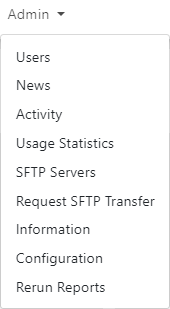
The Admin menu is always available. However, not all pages are displayed in the menu for all users.
|
|

|
The Search field allows the user to search across the application for relevant information. Content searchable through this input include:
-
Pages
-
Reports
-
News Items
-
To-Do Items
-
Inbox Items
Upon clicking the search button next to the Search field, you will be taken to a search results screen. This screen will list any results returned for the given search including a title, description, type, and link to item.
|